Understanding Basic Screening Assessment in InterWiz
September 22, 2025 | 3 min read
OVERVIEW
The Basic Screening Assessment helps recruiters evaluate candidates at an early stage by collecting essential background details, verifying basic qualifications, and assessing availability.
Parts of the Basic Screening Assessment
The assessment is divided into three sections:
Background Check Questions – Gather details about the candidate’s past experience, work history, and general background to validate suitability.
Skill Qualification – Simple skill-based questions that confirm whether the candidate meets minimum job requirements.
Logistics Questions – Focus on availability, notice period, and expected joining date.
👉 Note: All questions are AI-generated. Recruiters can review, edit, or remove them as needed.
Adding Basic Screening to an Assessment
You can include a Basic Screening Assessment while creating, editing, or cloning a template.
Steps:
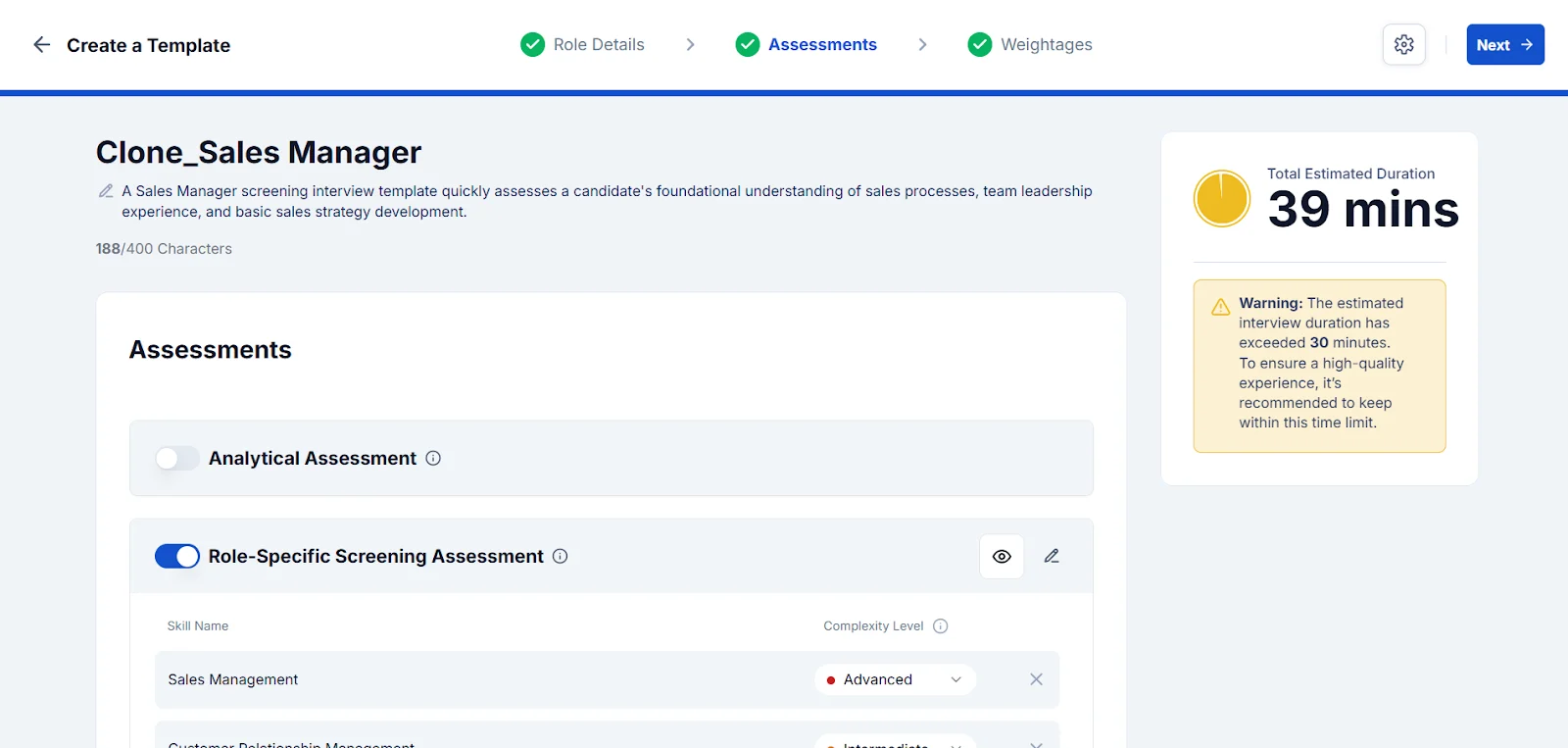
Create, edit, or clone a template.
The Create Template Wizard will open.
Navigate to the Assessment step.
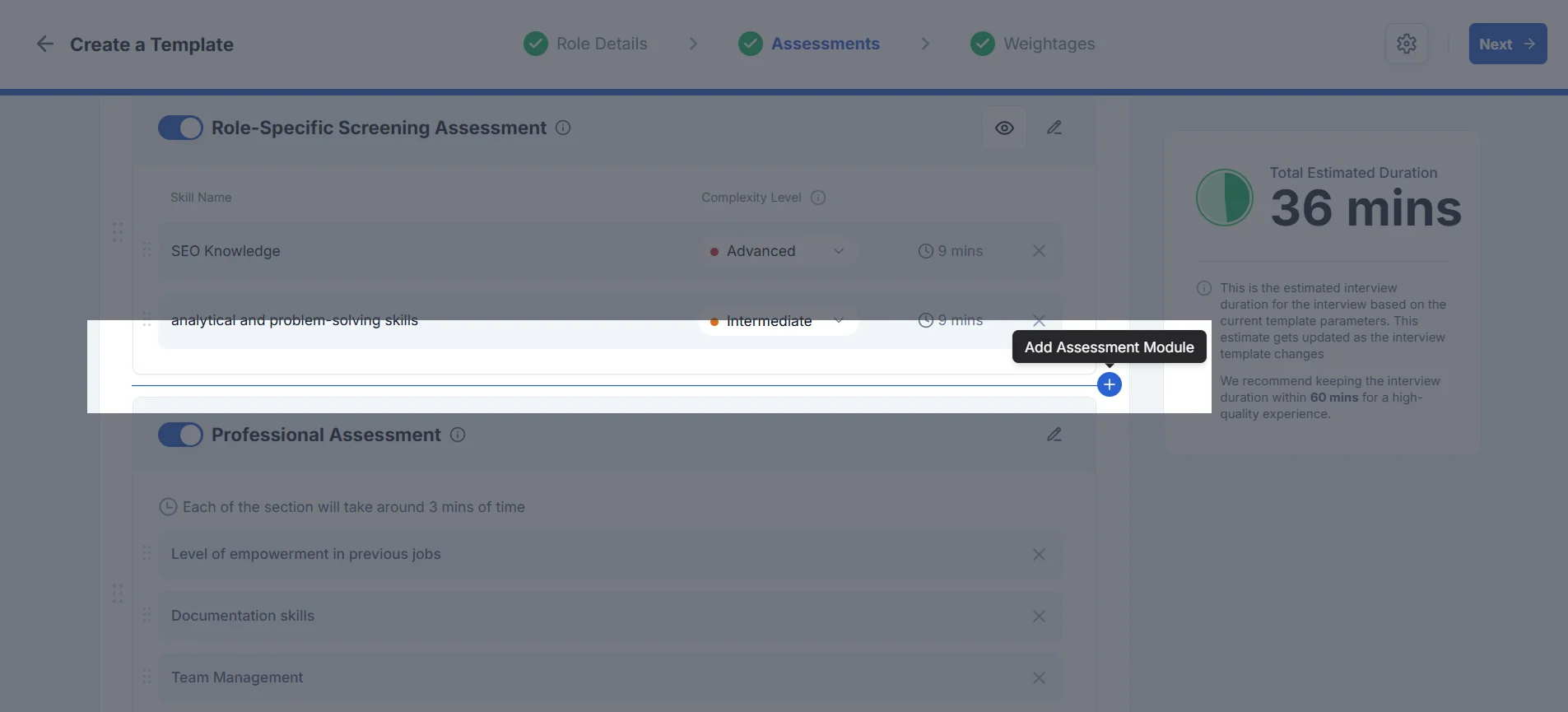
Hover between two assessments and click Add Assessment (+).
A drawer will open with available assessment types.
Select Basic Screening → click Next.
The system will automatically generate questions.

Managing AI-Generated Questions
Once generated, you can refine the questions:
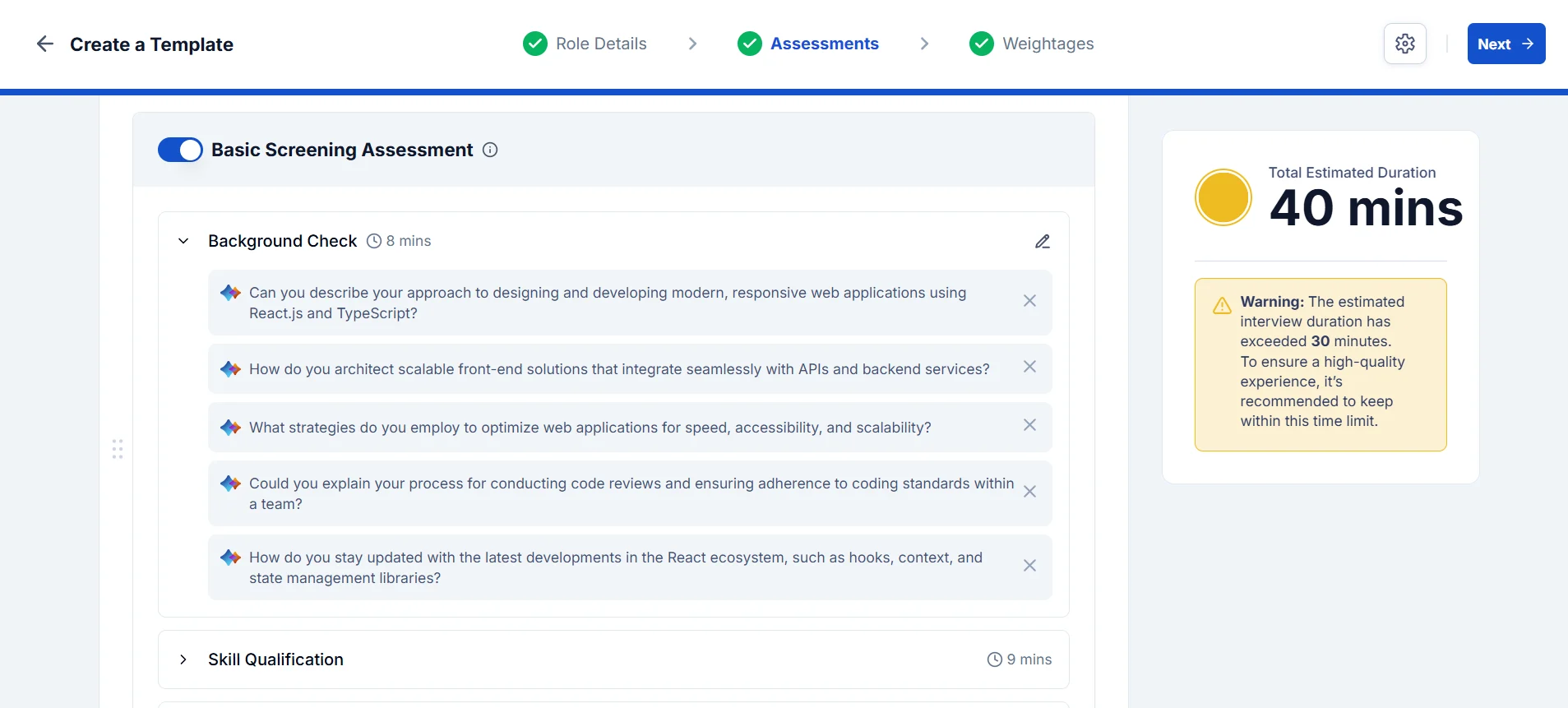
Remove a question → Click the cross (×).
Edit a question → Click the pencil icon to open the editor.
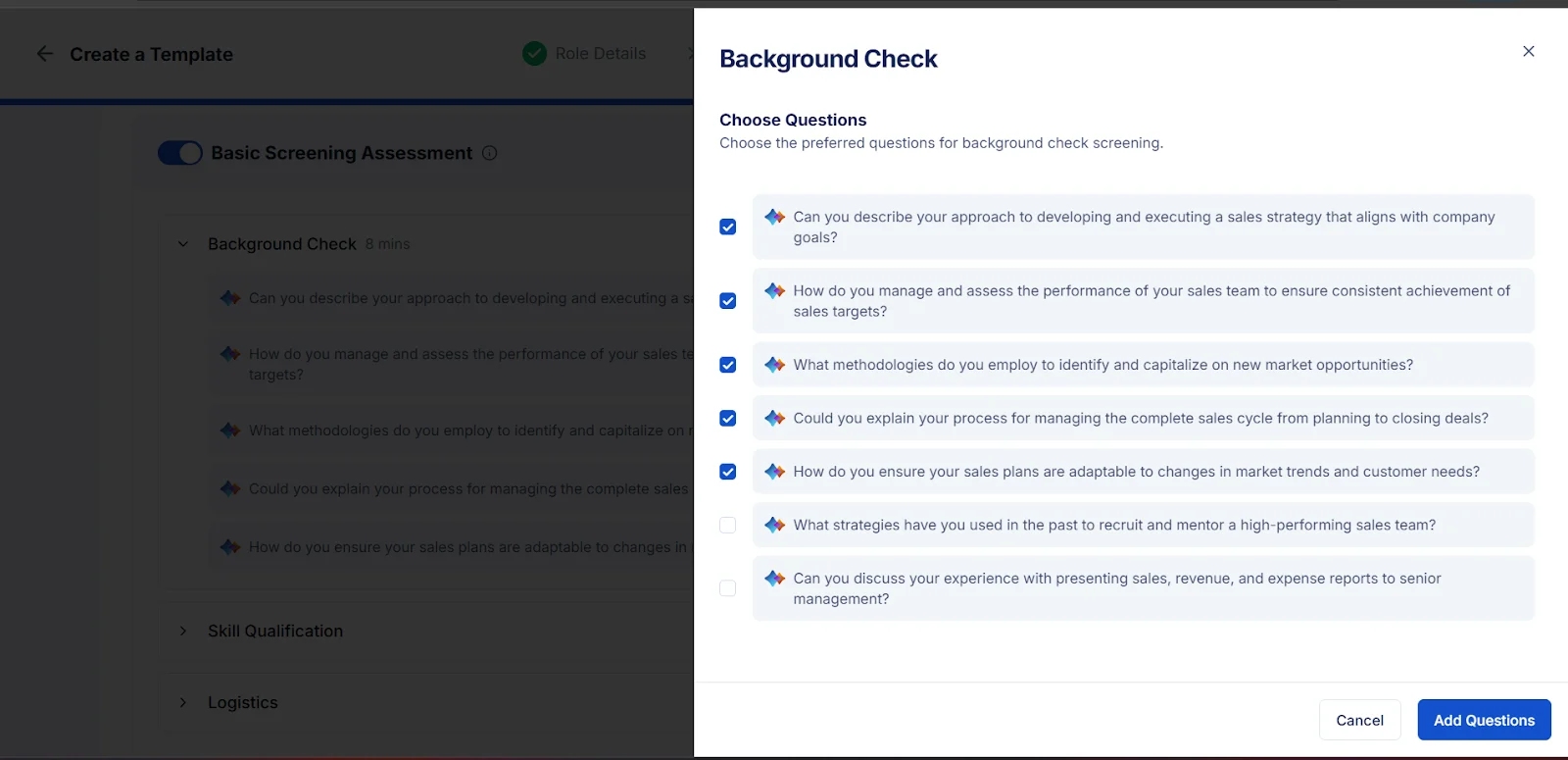
Select questions to keep → Use checkboxes, then click Add Question to confirm.
⚡Pro Tip: If you remove all questions, a “+” icon will appear. Use it to reopen the question drawer and add new ones.
Skill Qualification State
When Basic Screening is added:
Default state = Question Pending
AI begins generating Skill Qualification questions after the assessment is saved.
Recruiters can review and adjust them once generation is complete.

✅ The Basic Screening Assessment ensures only qualified, available candidates move forward in the hiring pipeline, saving time and improving decision-making early in the process.