Understanding the Programming Assessment
September 19, 2025 | 4 min read
OVERVIEW
At InterWiz, some interviews include a Programming Assessment designed to evaluate your real time coding and problem solving skills. This guide explains how the assessment works, what you’ll see on your screen, and how to navigate through it confidently.
Getting Started
When you join a Programming Assessment:
Carefully read through the instructions.
Click the “I am ready” button to begin.
Choosing a Programming Language
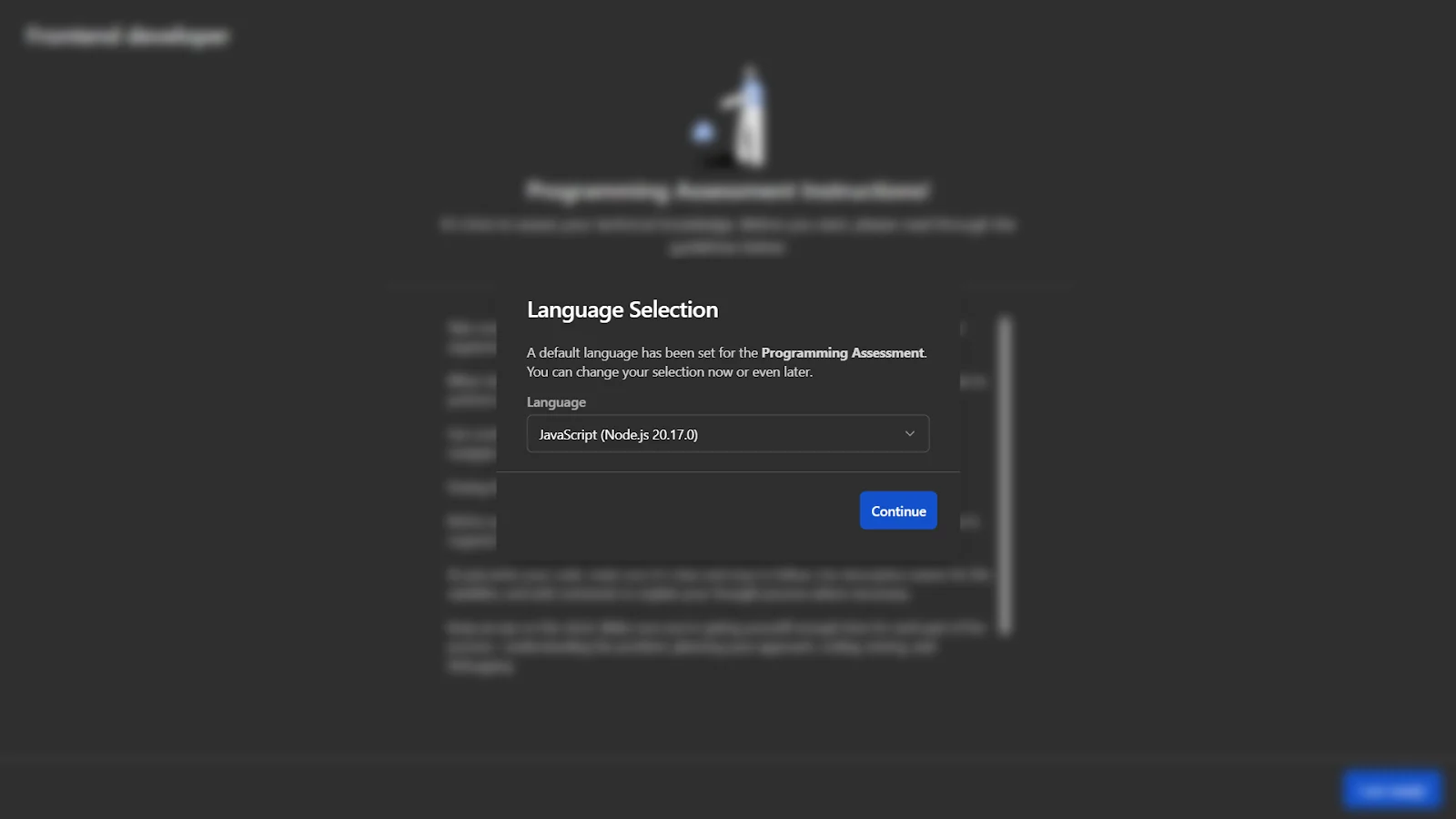
A pop-up will appear asking you to select a programming language (depending on the type of problem).
Once you’ve chosen, click “Continue” to proceed.
You can change your language later, unless your recruiter has restricted the options.
Inside the Programming Assessment
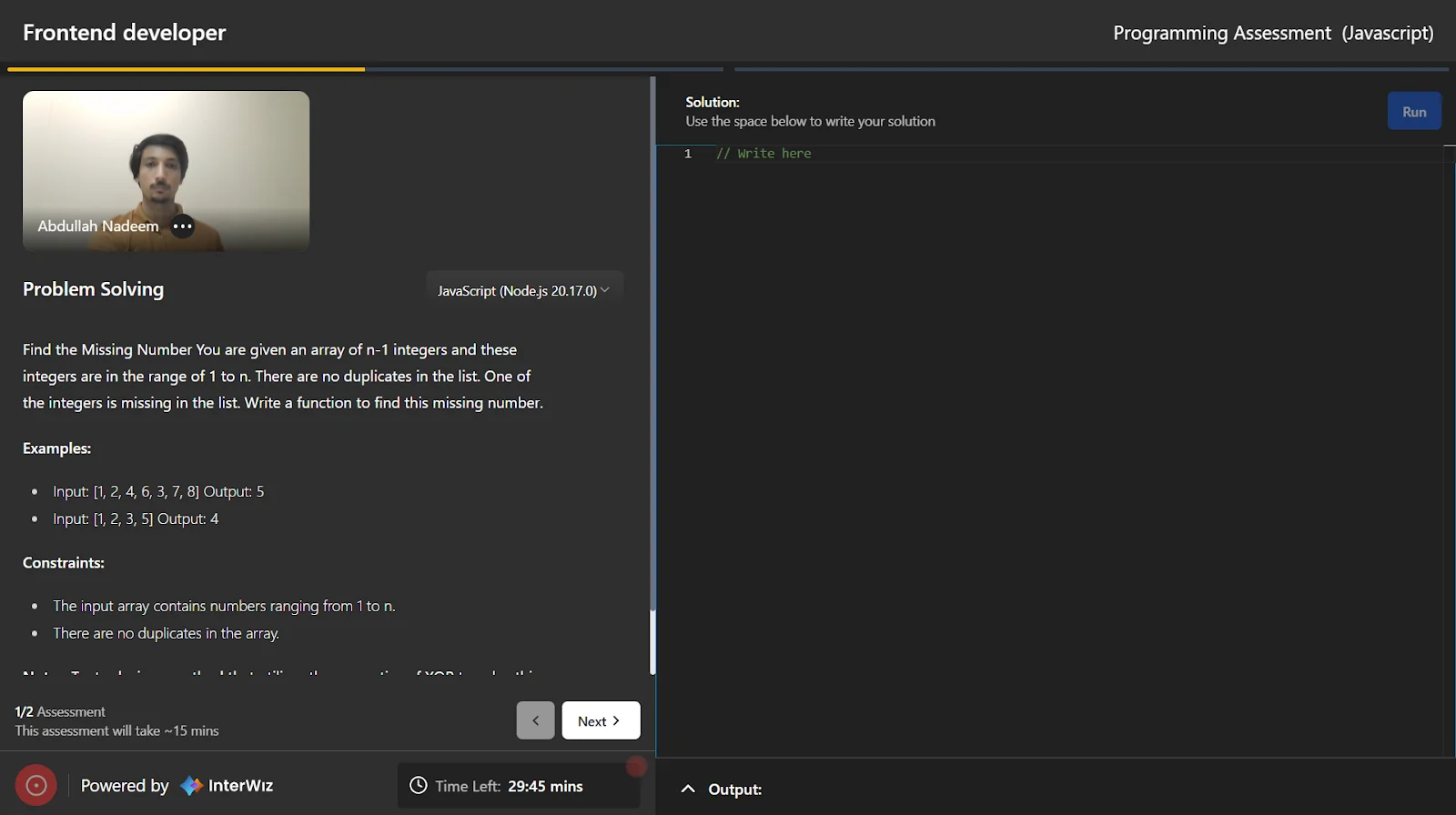
The assessment interface is divided into two main sections:
Left-hand side
Problem statement
Number of questions
Navigation buttons (Next/Previous)
Dropdown menu to switch programming languages
Timer showing total time remaining
Right-hand side
Code Editor to write your solution
“Output” section below the editor where the output of your code is displayed when you click “Run”.
Running and Testing Code
You can write and run your code directly in the editor.
The output of your program will appear in the Output section.
You can run and test your code as many times as you want before submitting.
Timers and Submission
A single timer tracks the total time for the entire assessment, not per question.
Once you have completed all problems, click Submit.
Submitting once will submit all questions. You don’t need to submit them individually.
If you don’t manually submit, your assessment will be automatically submitted when the timer expires.
Progress Saving and Rejoining
Your work is saved at regular intervals during the assessment.
If you accidentally disconnect or close your browser, you can rejoin the assessment and continue from where you left off.
All previous progress will still be available.