Understanding Custom Questions in InterWiz
September 19, 2025 | 5 min read
OVERVIEW
Custom Questions let you add job-specific or organization-specific questions to your interviews. They help you go beyond standard assessments and tailor the interview to the exact requirements of the job or company culture.
Why use Custom Questions?
Evaluate candidates on role-specific criteria
Create a more personalized interview experience
Add flexibility alongside standardized assessments
Types of Custom Questions
You can create questions in different formats depending on the skills or responses you want to measure:
Open-ended – Candidates provide their own response
Yes/No – Simple binary answers
Number – Enter a numeric response
Choose Option – Multiple-choice answers
Similarity – Match or compare responses
Attributes – Rate or select specific attributes
Qualifier Question – Mark certain questions as qualifiers to filter candidates
How to Add Custom Questions
1. Open Template Wizard
Go to the Template Wizard.
Click the ( + ) Add button between assessments.
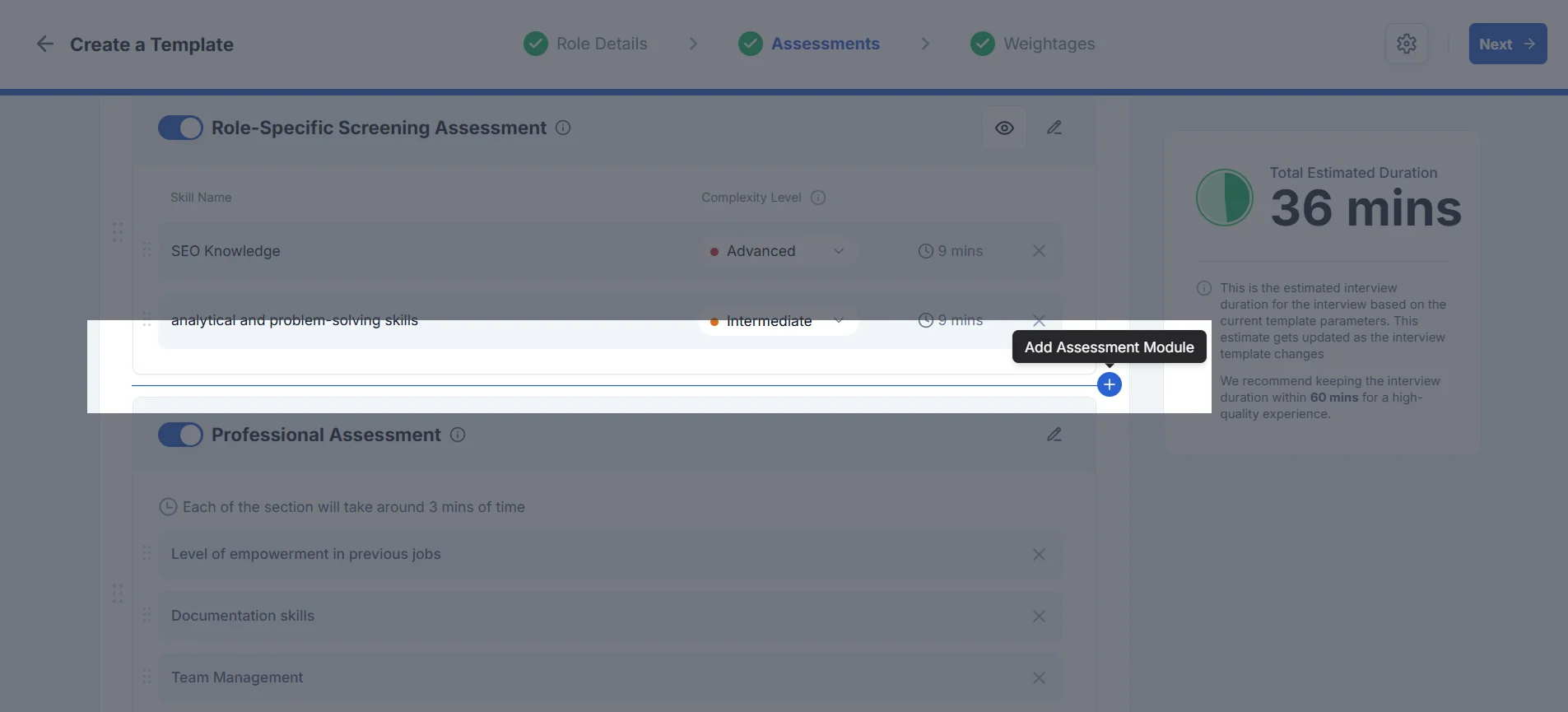
2. Select Custom Question Module
In the Add a Module drawer, select Custom Question.
Click Next.
The Custom Assessments panel will now appear.
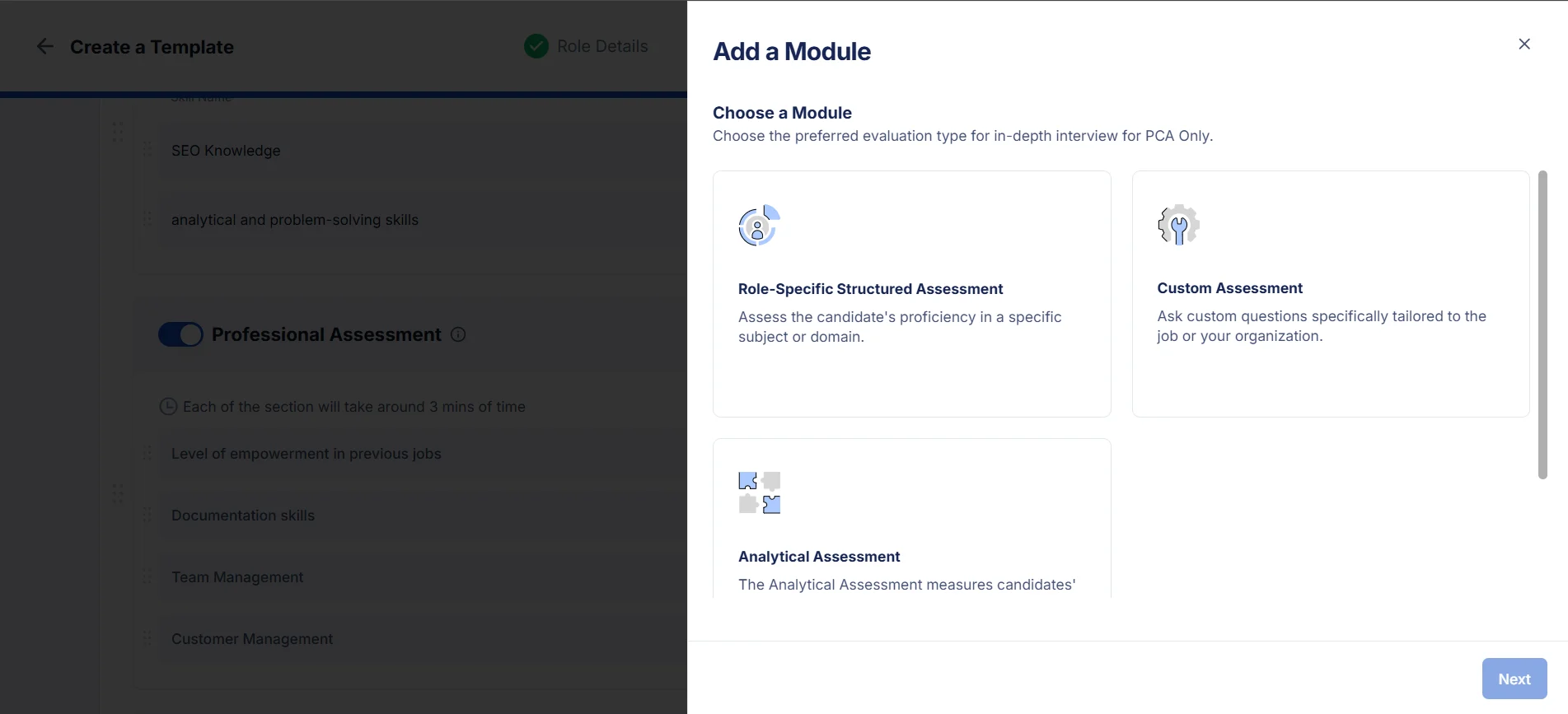
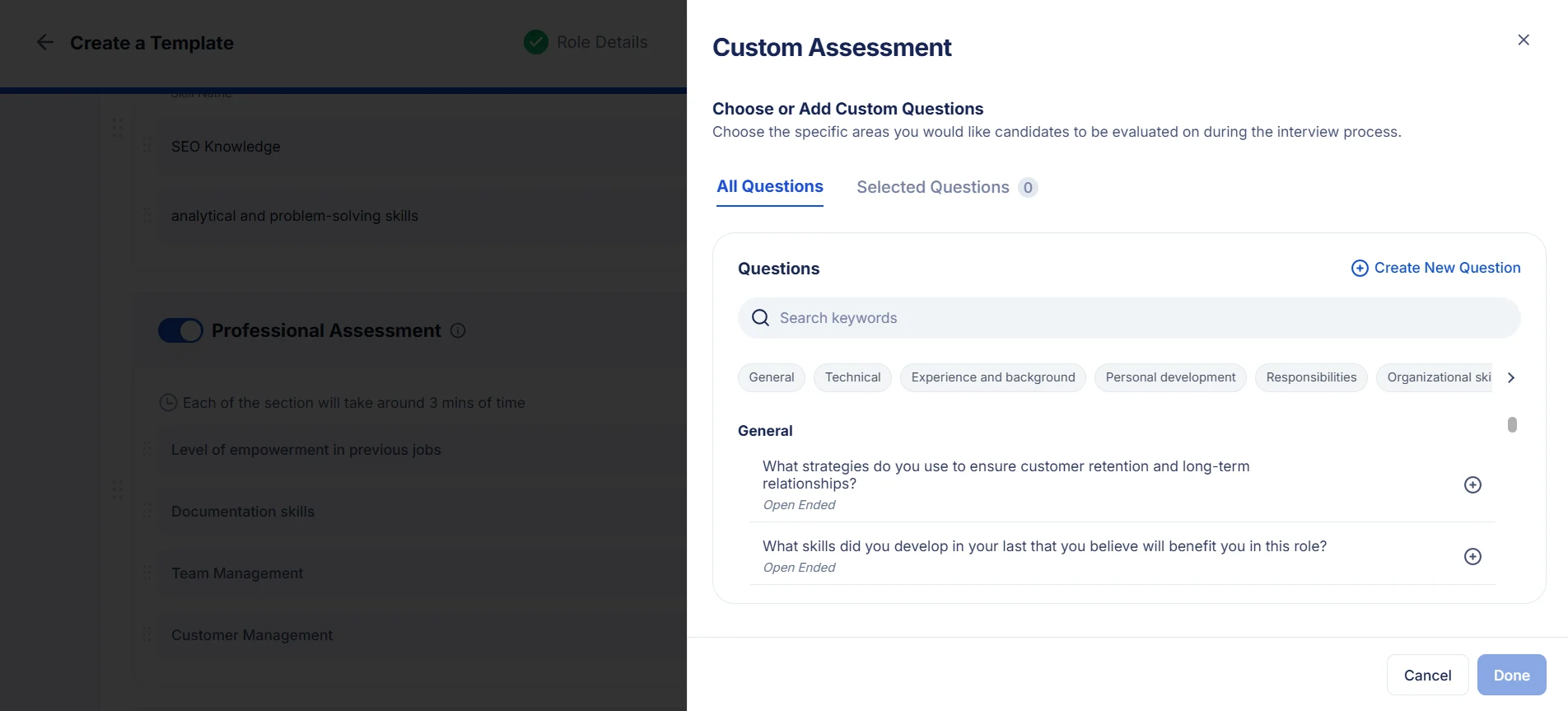
3. Choose from Existing Questions
Browse available custom questions.
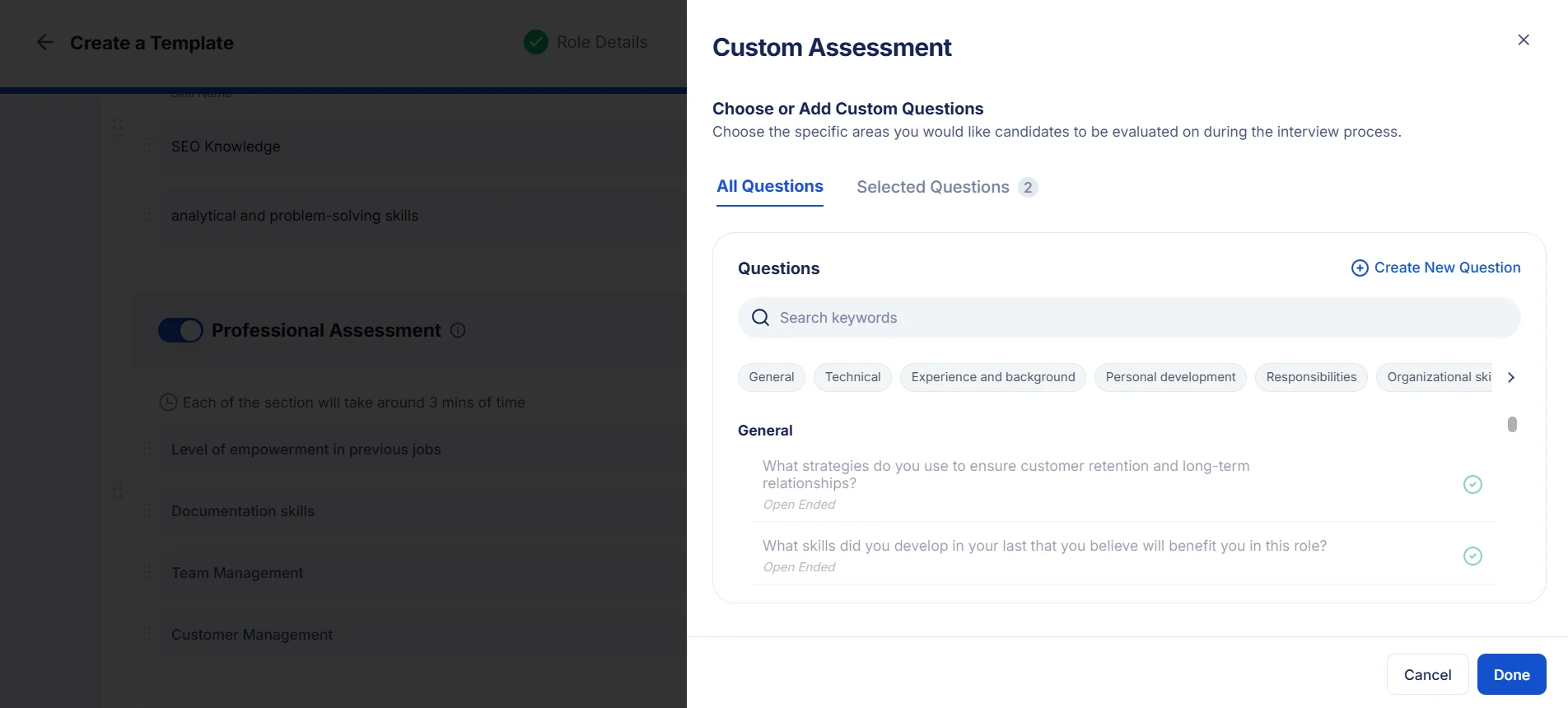
Click the ( + ) button next to a question to add it.
Your selected questions will appear in the Selected Questions tab.
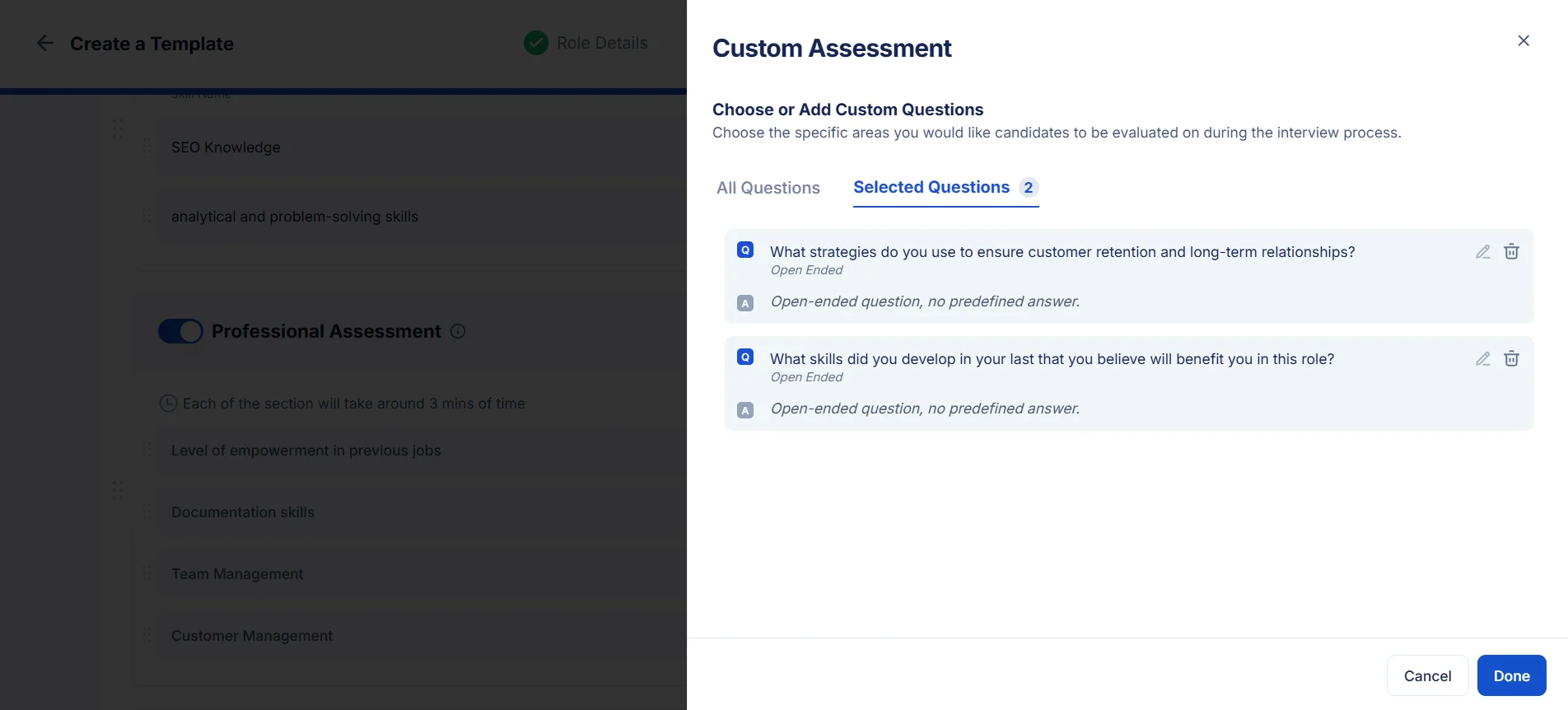
4. Create a New Custom Question
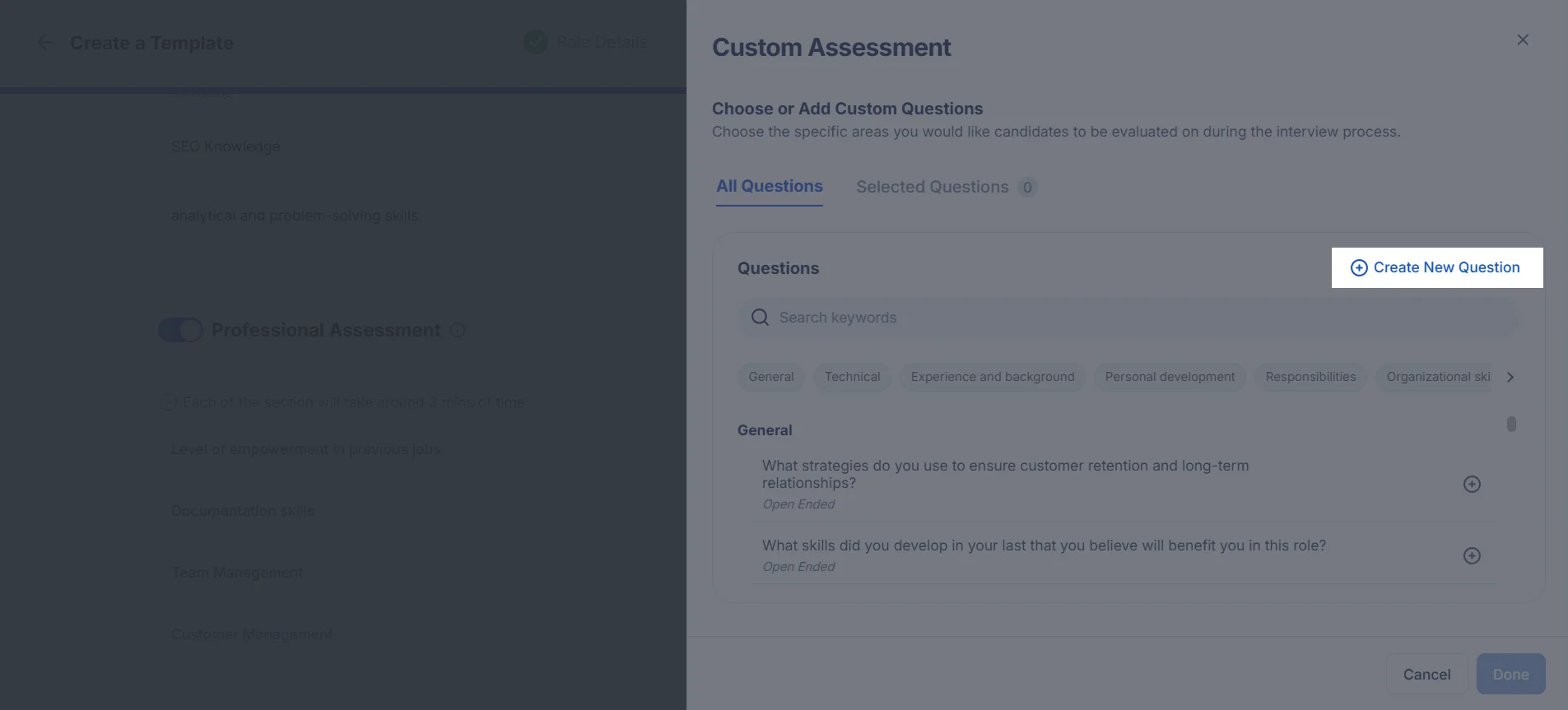
If no existing question fits, you can create your own:
Type your question and press Enter.
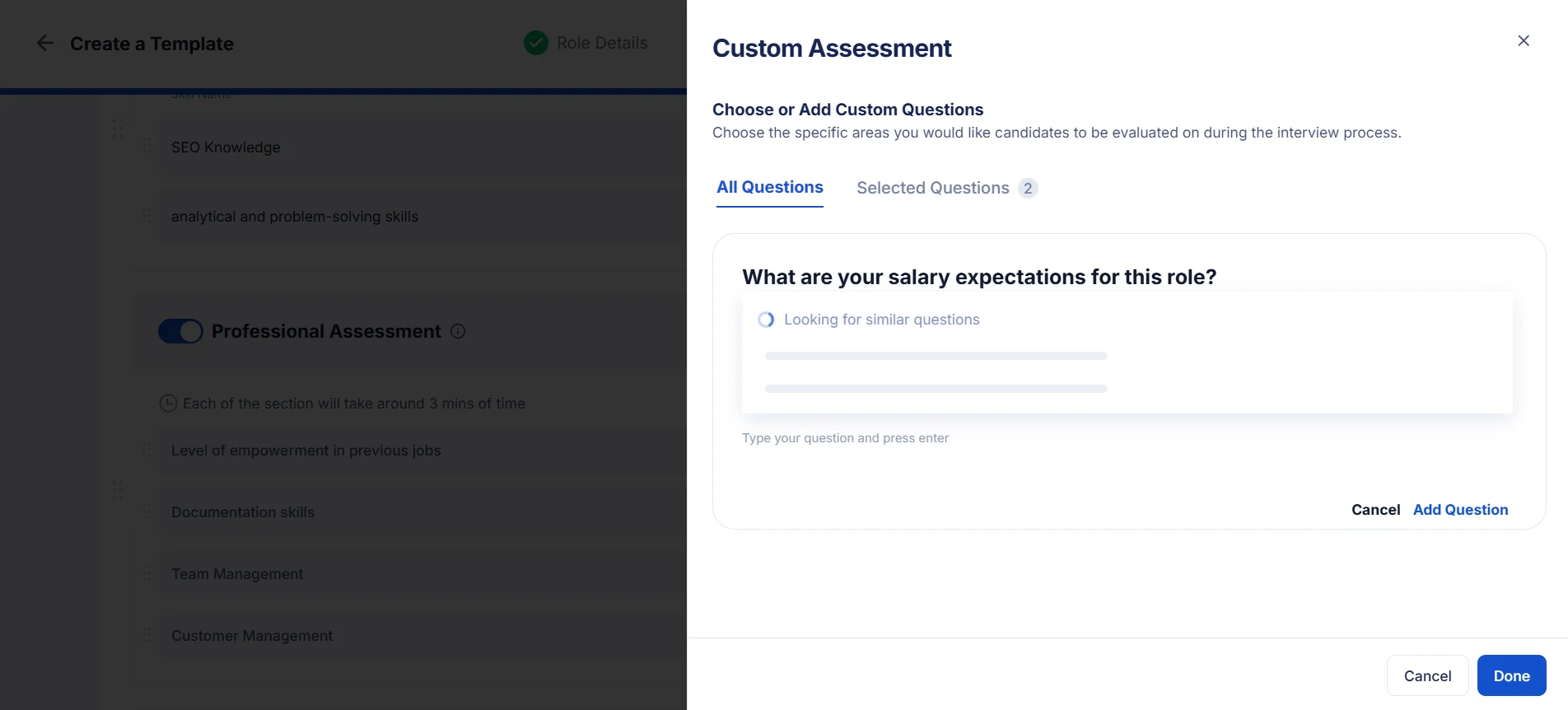
Interwiz will run a similarity check:
If a similar question already exists, you can choose to reuse it.
If not, a new question will be created.
Assign the question to a category.
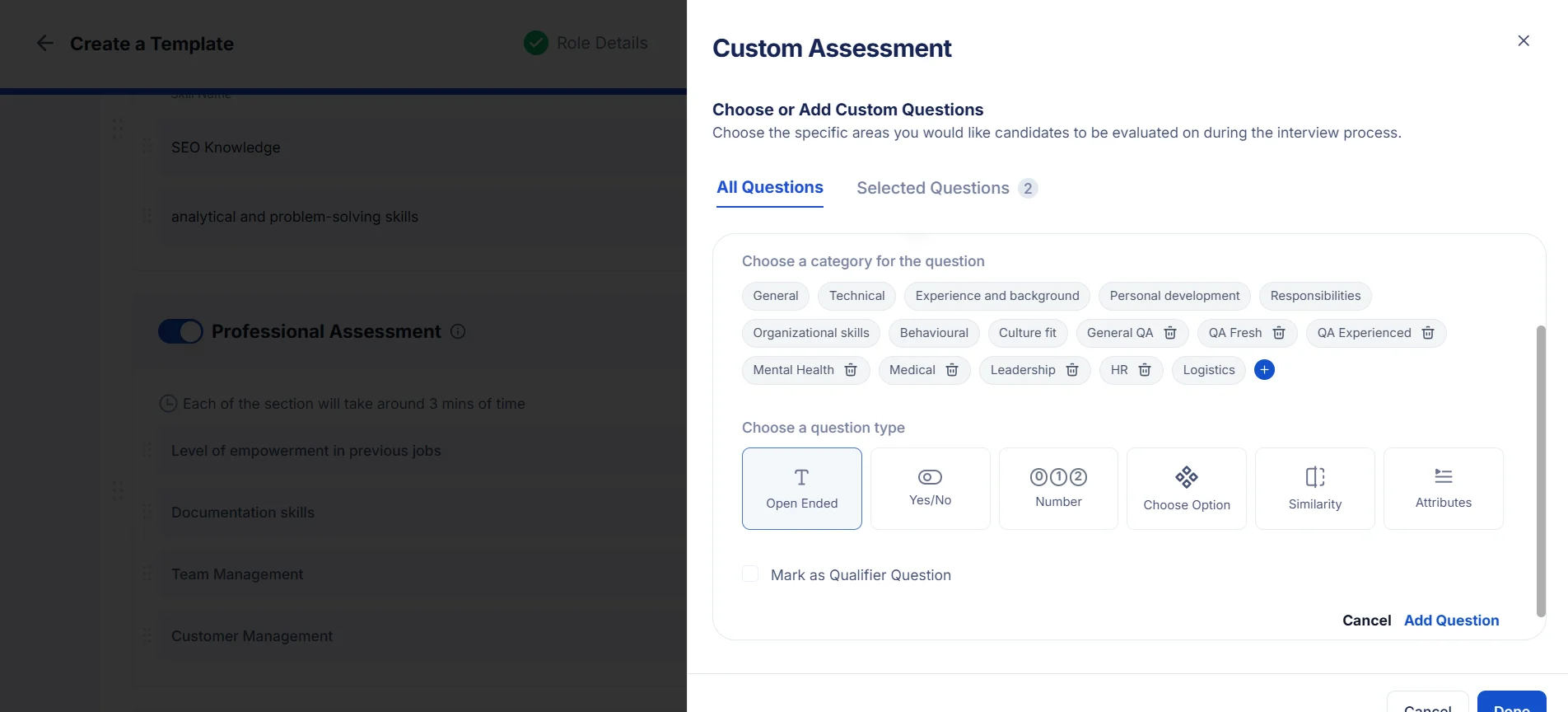
Configure advanced settings:
Choose the question type (e.g., open-ended, multiple choice).
Mark it as a Qualifier Question (optional).